Software
How to Consolidate Near-Identical HubSpot Workflows With Custom Code
Simple Strat used a custom-coded HubSpot workflow action to consolidate 32 near-identical Go Live workflows into one scalable solution, automatically handling notifications and task creation for every product implementation without building a new workflow each time.

The Challenge
The client was scaling their product offering, and their HubSpot workflow library was scaling right along with it. For each product, there was a dedicated Implementation Status property and a corresponding Go Live workflow. When an implementation went live, the workflow notified the team and the Company Owner, then created the appropriate follow-up tasks. That setup worked at 12 products. With a new round of products on the way, the number was about to become 32.
Managing, auditing, and updating 32 near-identical workflows wasn't a process anyone wanted to inherit. Each one would need to be kept in sync with the others any time a process change came through, and finding the right workflow when something needed attention meant digging through a library full of copies. Workflow creep like this is one of those problems that feels manageable until it suddenly isn't.
The Solution
The client already had Data Hub, and custom-coded workflow actions had been part of the work Simple Strat had done with them before. This felt like the same kind of problem those solutions were built for.
The Setup
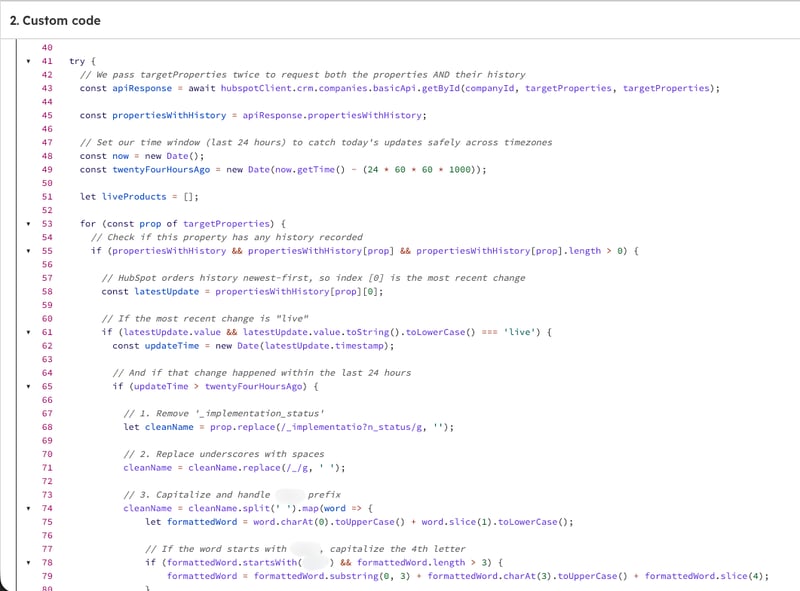
A single custom-coded workflow action was built to replace the full library of Go Live workflows. The code checks across all product Implementation Status properties and identifies any that have been updated to "Live." Rather than surfacing every implementation that had ever gone live, the logic was refined to only flag status changes that happened within the last 24 hours, so the workflow fires on what's actually new rather than pulling in implementations from years prior.
The Engine
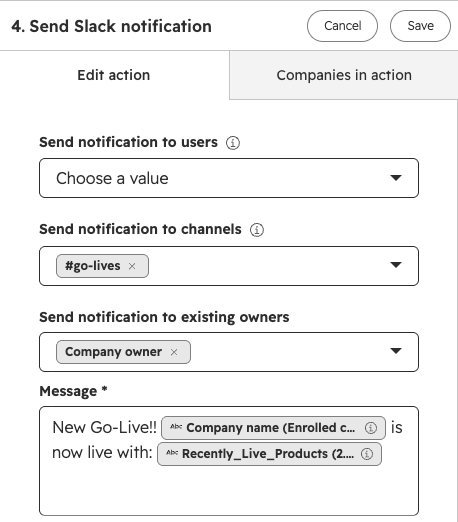
When the code identifies a recently updated Go Live, it handles everything the individual workflows used to do: notifying the team, notifying the Company Owner, and creating the follow-up tasks. It even still includes the name of the Product that just went live, which was key for this team's operations, and agreeing to switch over to this method.
Because the logic lives in code rather than in workflow structure, adding a new product doesn't mean building a new workflow. The next implementation status property gets picked up automatically the next time the workflow runs.
The Impact
Instead of 32 Go Live workflows, the client now has one.
It handles notifications and task creation for every product automatically, and when new products are added, the same workflow picks them up without anyone having to build another copy. A workflow library that had been heading toward a maintenance problem is now something the team can actually understand and hand off. The scalability that wasn't there before is built into the architecture now rather than dependent on someone remembering to create a new workflow each time a product launches.

FAQ
When should you use a custom-coded workflow action in HubSpot instead of building separate workflows?
When you're building the same workflow logic more than a few times, that's usually a signal the logic belongs in code rather than in workflow structure.
Separate workflows for separate use cases are easy to manage when the number stays small. When the same trigger, notifications, and task creation pattern needs to apply across dozens of products, objects, or conditions, maintaining individual workflows becomes a liability. A custom-coded action consolidates that logic into one place, where it can be updated once and applied everywhere. It also makes the workflow library easier to audit and understand, because the variation lives in the code rather than in a long list of near-identical workflows. As a HubSpot Diamond Solutions Partner, Simple Strat looks for these consolidation opportunities when a client's workflow count is growing faster than their ability to manage it.
How do you prevent a HubSpot workflow from firing on historical data when you only want to catch recent changes?
Add a condition to the code that checks when the property was last updated, and filter out anything outside the window you actually care about.
A workflow that triggers on a property value will catch everything that currently meets that condition, which can include records that were updated months or years ago. When the goal is to act only on what's new, the code needs to evaluate not just the value of the property but when that value was set. Checking the property's last updated timestamp against the current date and filtering to a defined window, like the last 24 hours, means the workflow only fires on genuinely recent changes. That distinction matters when the same property is used across a large number of records with a long history behind them. Simple Strat builds this kind of timestamp logic into custom-coded actions whenever the trigger needs to be time-sensitive rather than state-based.
What is workflow creep in HubSpot and how do you fix it?
Workflow creep is what happens when a library grows through addition rather than design, leaving teams with dozens of overlapping automations that are hard to audit, update, or hand off.
It usually starts with a reasonable decision: build a workflow for this product, this use case, this team. Over time those individual decisions add up into a library that nobody has a clear picture of. Fixing it means stepping back to identify which workflows are doing the same thing in slightly different configurations, then finding the underlying pattern and moving it into a single, more flexible solution. Custom-coded actions are often the right tool for this because they can handle variation in logic that would otherwise require a separate workflow or complex, unnecessary branching for each case. Simple Strat approaches workflow audits by mapping what each workflow actually does, grouping the ones with the same core job, and rebuilding from a consolidated architecture.
Last updated: October 22, 2026